Why You Need a Local PDF Signature Tool
We've all been there. A contract lands in your inbox, and you need to sign it and send it back. The traditional route — print the document, sign it by hand, scan it, and email the scanned copy — is tedious, wasteful, and painfully slow. It's a workflow that feels like it belongs in a different decade.
Online signature tools have emerged to solve this problem, but many of them introduce a new concern: your files get uploaded to remote servers. When you're dealing with employment agreements, rental contracts, or any document containing sensitive information, handing your PDF over to a third-party server isn't exactly reassuring.
What if you could sign a PDF entirely within your browser, with nothing ever leaving your device?
That's exactly what the PDF Signature tool from SodaTool offers — a free, registration-free way to handwrite your signature and place it on any PDF, with every step processed locally on your machine.
Core Advantages: Free, Private, and Flexible
Completely Free, No Registration Required
There are no hidden costs, no premium tiers, and no sign-up forms standing between you and your signed document. You simply open the tool and start using it. There's no account to create, no email to verify, and no trial period that quietly expires.
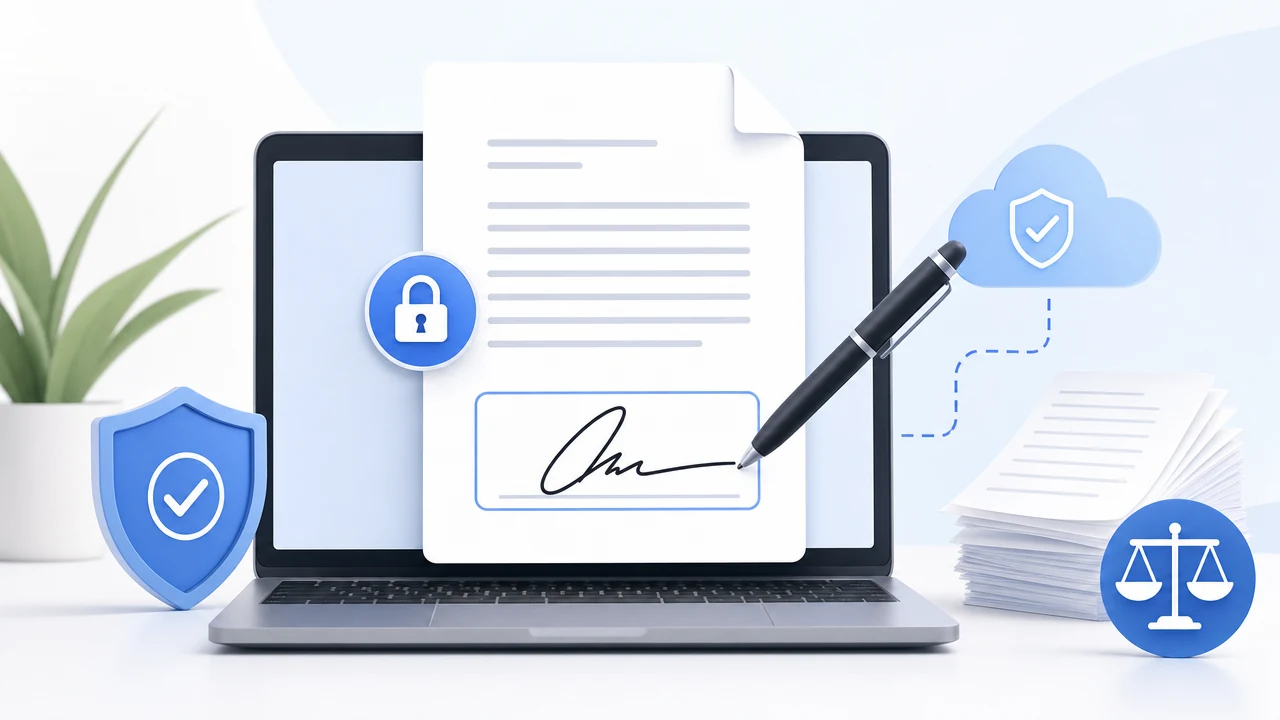
Local Processing — Your Files Never Leave Your Device
This is the standout feature. The entire workflow — from drawing your signature to compositing it onto the PDF — happens inside your browser. Your file is never transmitted to any server, which eliminates the risk of interception during upload or unauthorized access on a remote storage system.
Many popular online signature services take a different approach. They upload your PDF to their servers, apply encryption during transit, and then automatically delete files after a set period — typically one hour. While those are reasonable safeguards, they still mean your document exists on someone else's infrastructure, however briefly. SodaTool's local-only approach goes a step further: the data never leaves your hands at all. This makes it especially suitable for contracts, agreements, and any other files where confidentiality matters.
Handwritten Signature with Free Placement and Batch Application
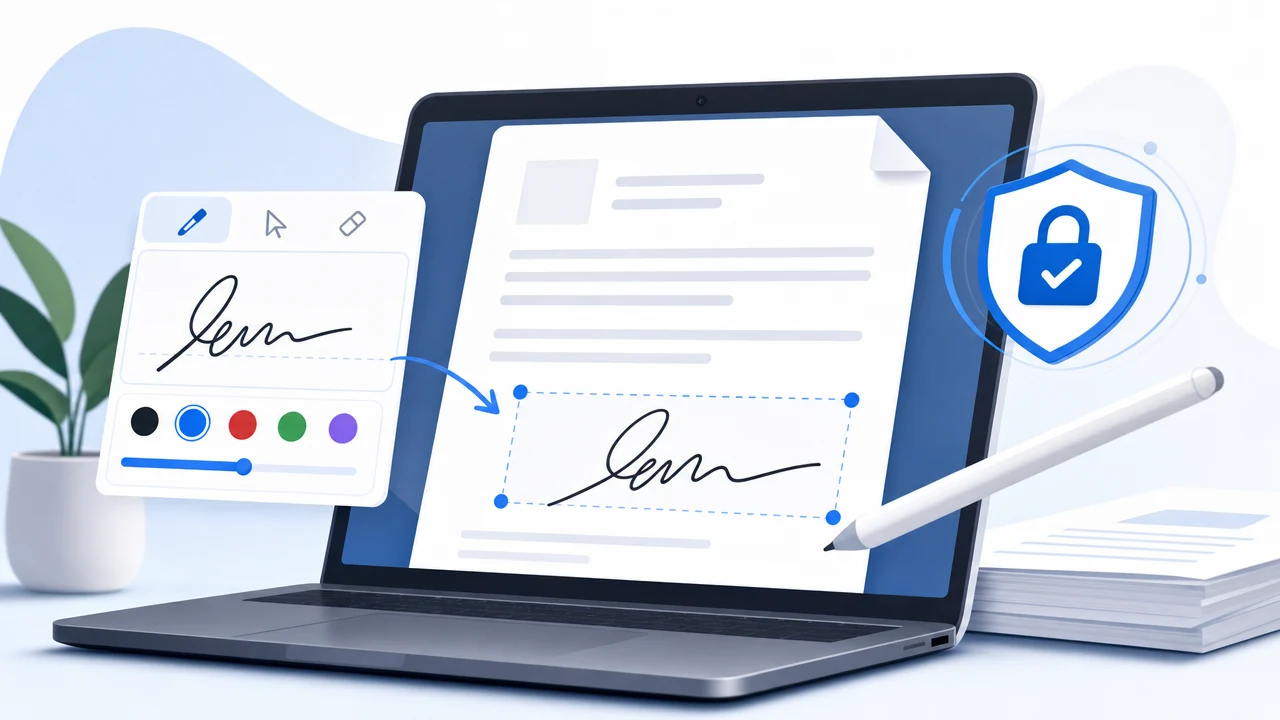
The tool lets you create a signature that looks like your real handwriting. You draw it using your mouse on a desktop, or with your finger or stylus on a phone or tablet. The result is a natural-looking signature — not a typed font pretending to be one.
Once your signature is ready, you can drag it to any position on any page of the document and resize it to fit. If you're working with a multi-page contract that needs your signature on every page, the "apply to every page" feature saves you from repeating the process manually. One click, and your signature appears in the same position across all pages.
How to Use It: Sign a PDF in Four Steps
Step 1: Upload Your PDF File
Open the tool and upload the PDF you need to sign. You can drag and drop the file or click to browse. Since everything is processed in your browser, there's no upload progress bar waiting on network speed — the file loads instantly into the local environment.
Step 2: Handwrite Your Signature
A drawing pad appears where you can write your signature. On a computer, use your mouse. On a tablet or smartphone, use your finger or a stylus for a more natural feel. Not happy with your first attempt? Clear the pad and try again — take as many attempts as you need until the signature looks right.
Step 3: Adjust Position and Size
Drag your signature onto the document and drop it exactly where it needs to go — next to a signature line, at the bottom of a page, or wherever the document requires it. Use the control handles to resize the signature so it fits the available space proportionally.
For multi-page documents, you have the option to apply the signature to every page at once. This is particularly useful for contracts where each page requires initialing or signing, saving considerable time on lengthy documents.
Step 4: Download the Signed File
Once you're satisfied with the placement, export the finished PDF with a single click. It's a good idea to preview the document before downloading to make sure the signature appears correctly on every page where you placed it. The downloaded file is a standard PDF, ready to be emailed, archived, or printed.
Frequently Asked Questions
Is it safe to sign a PDF online? Will my file be uploaded to a server?
It's safe. Your file is never uploaded anywhere. The signature drawing, placement, and PDF compositing all happen locally in your browser. This is a more thorough privacy protection model than services that upload files to servers — even those that use encryption and auto-deletion. With local processing, there's simply no external transmission to worry about.
Does handwritten signing work on touchscreen devices?
Yes. On a phone or tablet, you can use your finger or a stylus to write your signature directly on the screen, much like signing on paper. This mirrors the experience offered by native apps — for example, Apple's Preview app supports signing with a finger or Apple Pencil on iPhone and iPad. On a desktop computer, your mouse works perfectly for drawing a signature.
Can I place the signature at a specific location on the page?
Absolutely. The signature can be freely dragged to any position on any page of the document. You can also resize it by dragging the corner handles, ensuring it fits neatly into the designated signature area. And if you need the same signature in the same spot on every page, the one-click batch application feature handles that instantly.
Does a handwritten electronic signature have legal validity?
Handwritten electronic signatures are recognized as evidence of signing intent in most everyday scenarios. Major legal frameworks around the world support this:
- United States: The ESIGN Act (Electronic Signatures in Global and National Commerce Act) and UETA (Uniform Electronic Transactions Act) establish that electronic signatures carry the same legal weight as handwritten signatures, and they are admissible in court.
- European Union: Under the eIDAS regulation, qualifying electronic signatures are legally binding and can serve as evidence in legal proceedings.
That said, the exact legal standing depends on your jurisdiction and the type of document involved. For high-stakes contracts — such as real estate transactions, wills, or certain government filings — it's wise to consult a legal professional or use a certified electronic signature service that meets specific regulatory requirements.
Ideal Use Cases
This tool is best suited for lightweight signing needs where privacy is a priority. Here are the most common scenarios:
- Contract signing: Employment contracts, freelance agreements, rental leases, and service agreements that need a quick signature before sending back.
- Document confirmation and approval: Internal approval forms, acknowledgment letters, and authorization documents that require a sign-off.
- Form completion: Application forms, consent forms, permission slips, and similar documents where a signature finalizes the submission.
If your workflow involves frequent signing of everyday business or personal documents — and you'd rather not upload sensitive files to a third-party server — this is the tool for the job.
Start Signing PDFs Securely and Effortlessly
Signing a PDF shouldn't require printing, scanning, subscriptions, or surrendering your files to a remote server. With a tool that's completely free, requires no account, and processes everything locally in your browser, the friction is gone. Your signature stays yours, your files stay on your device, and your signed document is ready in under a minute.
Give it a try the next time a contract or form needs your signature. And for documents with significant legal or financial implications, remember to pair electronic signing with appropriate legal advice to ensure full compliance with your local regulations.