
Why You Need a Video Thumbnail Sheet
If you work with video every day, you already know the problem: a folder full of clips with cryptic filenames, and no fast way to tell them apart. Opening each file, scrubbing to the middle, and closing it again wastes minutes that add up quickly across dozens of videos.
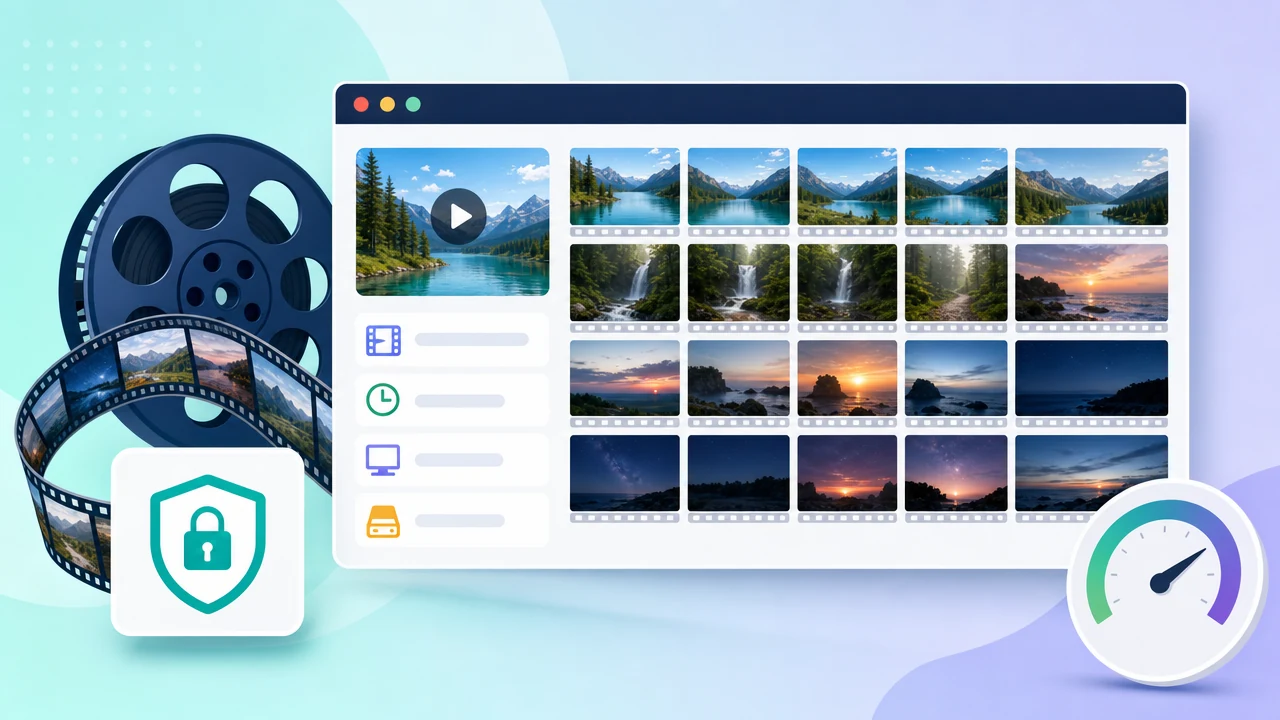
A thumbnail sheet—also called a sprite sheet or contact sheet—solves this in one glance. It extracts multiple frames evenly across the entire length of a video and arranges them into a single image, giving you an instant overview of what the video contains without ever pressing play.
The Video Thumbnail Sheet generator on SodaTool does exactly this—for free, entirely online, with no software to install. The standout feature: all processing happens locally in your browser, so your video files are never uploaded to any server.
In this article, we'll walk through what the tool does, why local processing matters, how to use it in four steps, how to choose an output format, and answer the questions users ask most often.
Core Features at a Glance
Even Frame Sampling That Skips the Empty Bits
The tool extracts frames evenly across the full duration of your video. Just as importantly, it automatically avoids the very beginning and very end of the clip—the spots where black frames, intros, and fade-outs commonly appear. By sampling within the remaining runtime, every frame in your sheet carries useful visual information instead of blank filler.
Output Images Packed With Useful Information
Each generated sheet is more than a grid of pictures. Along the top, it displays a fixed header showing:
- A customizable video name
- Video duration
- Resolution
- File size
You can optionally show a timestamp on each frame, making it easy to locate a specific moment in the source video. A fixed watermark reading "苏打在线工具 SodaTool.com 生成" sits in the bottom-right corner as a source marker.
Broad Input Format Support
The generator accepts five mainstream video formats: MP4, WebM, MOV, M4V, and OGV—covering the vast majority of clips you're likely to have on hand.
How it compares: There are other sprite-sheet tools out there. Some online generators let you extract frames by count or interval and arrange them into grids, while desktop applications like Video Thumbnails Maker create thumbnails and preview animations. But those typically require either uploading your file to a server for processing or installing dedicated software. This tool runs entirely in the browser with zero uploads—a meaningful difference when privacy matters.
Why Local, In-Browser Processing Matters
This is the tool's defining advantage, so it's worth spelling out clearly.
Every stage of the workflow—reading the video, seeking to timestamps, extracting frames, laying out the grid, and downloading the final image—happens inside your current browser. Your video file is never transmitted to any server.
That has real consequences:
- Privacy for sensitive content. Meeting recordings, family videos, unreleased footage, confidential drafts—process them all without any risk of the file leaving your device.
- No upload or download wait. Because nothing travels over the network, you skip the transfer time entirely. Processing is as fast as your machine allows.
- No upload size limits to worry about. You aren't constrained by a server's file-size cap, since the file never goes anywhere.
For anyone handling private or large videos, this local-first approach removes the single biggest hesitation people have about online tools.
How to Use It: Four Steps to a Thumbnail Sheet
Step 1: Select Your Video File
Choose a local file in MP4, WebM, MOV, M4V, or OGV format. For the smoothest experience, common formats like MP4 offer the best compatibility.
Step 2: Set Frame and Layout Options
- Frame count — how many frames the finished sheet will include.
- Columns per row — controls how densely the grid is packed horizontally.
- Thumbnail width — adjusts the size of each individual frame.
- Background style — pick a dark or light background to suit your preference and the content.
Step 3: Configure Display Info and Output Format
Decide whether to show per-frame timestamps (helpful when you need to pinpoint exactly when a moment occurs), then choose your output format: PNG, JPG, or WebP (see the comparison below).
Step 4: Generate and Download
Click generate. The tool extracts and stitches the frames together locally, then hands you the finished thumbnail sheet as a direct download. No account, no queue, no upload.
Choosing an Output Format: PNG vs. JPG vs. WebP
| Format | Characteristics | Best for |
|---|---|---|
| PNG | Lossless output, top image quality, but file sizes are usually larger | High-quality archiving, printing, or further editing |
| JPG | The most widely compatible format—supported almost everywhere | Everyday sharing and uploading to any platform |
| WebP | Good image quality at a smaller file size | Saving storage space and web display |
Quick recommendation: For bulk archiving where you want to save space, choose WebP. For formal sharing where universal compatibility matters most, choose JPG. When you need the absolute best quality for editing or print, choose PNG.
Real-World Use Cases
- Media asset archiving. Content creators managing large libraries can generate preview sheets to categorize and locate clips at a glance.
- Content review and QA. Reviewers can scan a video's key frames without watching it end to end—ideal for quick quality checks.
- Pre-publish preview. Before releasing a video, creators can verify frame quality, resolution, and overall look in seconds.
- Team collaboration. Send a thumbnail sheet as a fast visual summary to teammates instead of sharing the full-size original file.
Frequently Asked Questions
Will my video be uploaded to a server?
No. Reading the video, seeking to timestamps, extracting frames, laying out the grid, and downloading the image all happen inside your current browser. Nothing is uploaded.
How are the thumbnail frames chosen?
The tool avoids the very start and end of the video, where blank or black frames commonly appear, and then samples the requested number of frames evenly across the remaining runtime.
What information appears on the generated image?
A fixed header at the top shows the customizable video name, duration, resolution, and file size. Each frame can optionally display a timestamp, and a SodaTool watermark is fixed in the bottom-right corner.
How should I choose between PNG, JPG, and WebP?
In short: PNG for lossless quality (larger files), JPG for the widest compatibility, and WebP to balance quality against a smaller file size.
Is the tool free? Do I need to register?
It's a free online tool—just open the page and start using it, no installation required.
Which video formats are supported?
Five formats: MP4, WebM, MOV, M4V, and OGV.
Wrapping Up
Managing and previewing video no longer needs to mean clicking through files one by one. With even frame sampling that skips the empty bits, information-rich output images, flexible layout options, and three export formats, the Video Thumbnail Sheet generator turns any clip into a clean, shareable overview in seconds.
Best of all, it's free, requires no upload, and processes everything locally in your browser—so even your most private footage stays on your device.
Give it a try now: https://www.sodatool.com/media/video-thumbnail-sheet