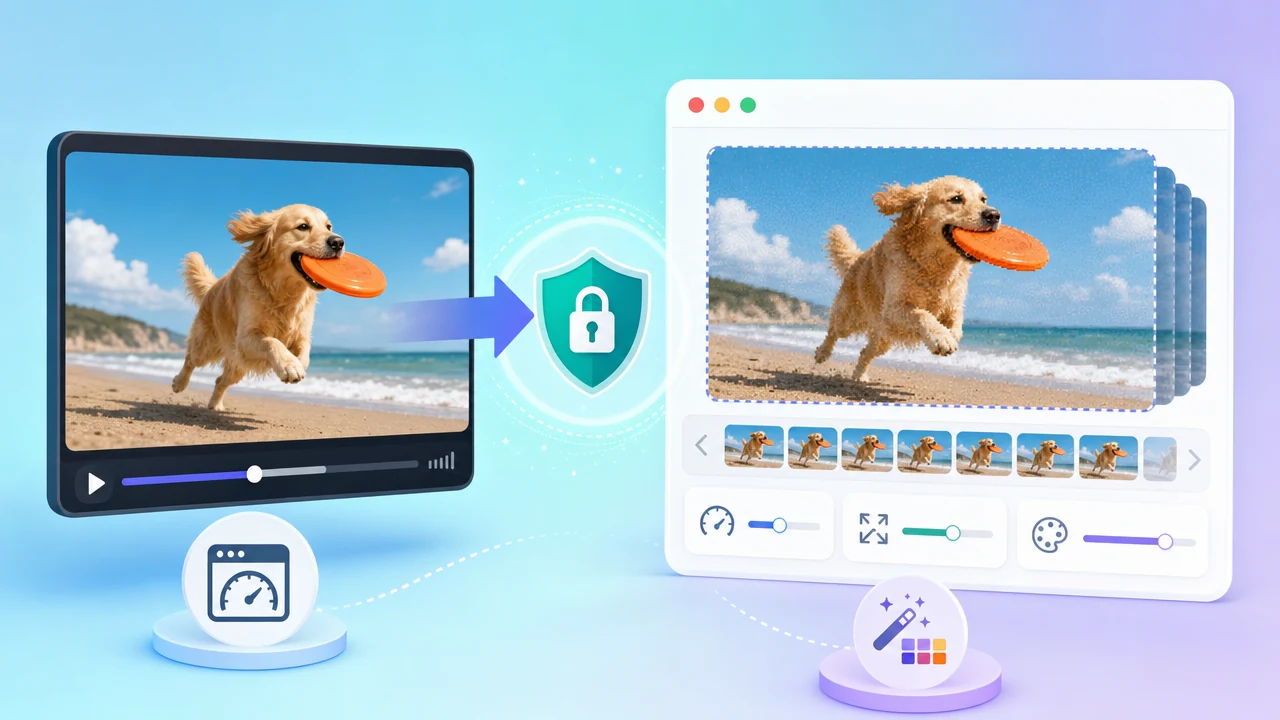
Why You Need a Reliable Video-to-GIF Tool
GIF animations are everywhere — social media feeds, chat conversations, blog posts, product demos, and reaction memes. Whenever you want to capture a fleeting moment from a video and share it instantly, a GIF is often the perfect format: lightweight, universally supported, and endlessly loopable.
But if you've ever tried converting a video clip to a GIF online, you've probably run into some frustrating issues. Most web-based converters require you to upload your video to a remote server, which raises immediate privacy concerns — especially if the footage contains personal moments, unreleased work, or sensitive content. On top of that, many free tools produce washed-out, blocky GIFs with obvious color banding, and the process often feels clunky with limited control over the output.
There's a better way. Our Video to GIF tool is a free online converter that processes everything locally in your browser. Your video never leaves your device. And thanks to a professional-grade two-pass color palette algorithm, the GIFs it produces are noticeably smoother and more vibrant than what you'd get from a typical single-pass converter. Let's take a closer look at what makes it different and how to use it.
Core Advantages of the Tool
Completely Local Processing — Your Video Never Leaves Your Device
This tool is built on FFmpeg.wasm, which brings the full power of the FFmpeg multimedia framework directly into your web browser. That means every step of the conversion — reading the video file, analyzing frames, generating the palette, and producing the final GIF — happens entirely on your local machine.
No video data is transmitted over the network. No files are stored on any server. From a privacy standpoint, this is as safe as it gets: the tool simply cannot leak your content because it never has access to an external connection during processing.
Two-Pass Palette Algorithm for Richer Colors
Most quick-and-dirty GIF converters use a single-pass approach: they apply a generic color palette to every frame, which often results in noticeable color banding, especially in scenes with gradients, skin tones, or complex lighting.
This tool takes a more sophisticated approach with a two-pass palette method:
- First pass — Palette generation: The tool analyzes the entire video segment to identify the optimal set of colors that best represents the actual content of your frames.
- Second pass — Dithered quantization: Using that custom-built palette, the tool then renders each frame with dithering applied, which smooths out color transitions and minimizes banding artifacts.
The result is a GIF that looks significantly more refined — gradients are smoother, colors are more accurate, and complex scenes retain far more visual detail compared to single-pass conversion.
Flexible Customization Options
Not every GIF serves the same purpose, so the tool gives you meaningful control over the output:
- Supported formats: MP4, MOV, MKV, WebM, and other common video formats.
- Frame rate (10–25 fps): Control how smooth or compact your animation is.
- Output width (320–854 px): Choose the right size for your target platform — whether it's a small chat sticker or a wide-format blog embed.
- Color quality (64 / 128 / 256 colors): Balance between visual fidelity and file size based on your specific needs.
How to Use It: 5 Steps to Your GIF
Converting a video to a GIF with this tool is straightforward. Here's the step-by-step process:
- Upload your video file. Select a video that is 15 seconds or shorter and no larger than 300 MB. The tool accepts MP4, MOV, MKV, WebM, and more.
- Choose your parameters. Set your preferred frame rate, output width, and color quality level.
- Click "Start Conversion." The browser will run the two-pass processing locally on your device. You'll see the progress as it works.
- Preview the result. Once conversion is complete, the GIF is displayed for you to review before committing to a download.
- Download your GIF. If you're happy with the result, save the file to your device with a single click.
Tips:
- Always preview before downloading. This way, you can tweak parameters and re-convert without unnecessary back-and-forth.
- Processing speed depends on your device's performance, the video's length, and the chosen resolution. Shorter clips at moderate settings convert in seconds on most modern machines.
Parameter Selection Guide: How to Get the Best Results
Choosing the right settings can make the difference between a crisp, perfectly-sized GIF and a bloated or pixelated mess. Here's a practical breakdown.
How to Choose the Frame Rate
- 15 fps is a solid default for most use cases. It produces smooth-looking animation while keeping file sizes reasonable.
- 20–25 fps delivers a silky, video-like feel — ideal for fast action or detailed motion. However, more frames per second means a proportionally larger file.
- 10 fps works well for content that doesn't rely on fluid motion, such as slideshow-style clips, text animations, or slow-moving scenes. This significantly reduces file size.
How to Decide on Output Width
- 320–480 px: Great for mobile sharing, messaging apps, and small embedded thumbnails.
- 480–640 px: A versatile range for blog posts, articles, and social media posts where the GIF appears at medium size.
- Up to 854 px: Best for high-definition display scenarios, but be aware that wider output combined with higher frame rates will substantially increase file size.
How to Balance Color Quality
The color quality setting directly controls how many colors appear in the GIF's palette:
- 64 colors: The smallest file size. Works well for simple graphics, text overlays, or screen recordings with limited color range. On complex, colorful footage, you may notice visible color banding.
- 128 colors: A well-balanced middle ground that suits the majority of real-world clips. Most users will find this delivers good quality without excessive file bloat.
- 256 colors: Maximum color fidelity. Choose this for video clips with rich gradients, natural landscapes, or scenes where color accuracy matters most. Expect the largest file sizes.
Frequently Asked Questions
Will my video be uploaded to a server?
No. All processing — video reading, GIF conversion, and result generation — runs entirely through FFmpeg.wasm in your browser. There is no network transmission of your video data at any point during the conversion.
Why is there a 15-second time limit?
GIF is a frame-by-frame image format without inter-frame compression, so file size grows rapidly with duration. A 15-second GIF at 480 px wide and 15 fps can already reach tens of megabytes. The 15-second cap ensures that the conversion completes in a reasonable time and that the resulting GIF remains practical to share and embed on the web.
What if my video is longer than 15 seconds?
No problem. You can first use our video trimming tool to cut the exact segment you need down to 15 seconds or less, then come back to the Video to GIF tool to complete the conversion.
What exactly does the quality option control?
It determines the number of colors in the GIF's palette — 64, 128, or 256. More colors produce smoother gradients and more accurate color reproduction but result in a larger file. Fewer colors yield smaller files but may introduce visible color banding in gradient-heavy scenes.
Will the GIF have sound?
No. GIF is a purely visual image format. The audio track from the original video is automatically discarded during conversion.
Use Cases and Inspiration
Not sure what you'd use this for? Here are some popular scenarios:
- Social media managers: Create eye-catching product demos, event teasers, or countdown animations that auto-play in feeds without requiring a video player.
- Content creators and bloggers: Convert standout moments from your videos into GIF embeds for articles, tutorials, or newsletters to boost engagement.
- Designers and developers: Quickly generate animated previews of UI interactions, prototype demonstrations, or motion design effects for presentations and documentation.
- Everyday users: Make custom memes, reaction GIFs from your favorite clips, or fun chat animations to share with friends — all without installing any software.
Start Creating GIFs Now
To recap, this tool offers three things that set it apart from the crowd:
- Privacy by design — your video is processed locally in the browser and never touches a server.
- Superior image quality — the two-pass palette algorithm produces noticeably smoother, more colorful GIFs than standard converters.
- Simple and free — no sign-ups, no watermarks, no hidden fees. Just upload, customize, convert, and download.
Whether you're crafting the perfect meme, building a product showcase, or simply capturing a moment worth looping forever, the Video to GIF tool is ready to help. Give it a try — your first GIF is just a few clicks away.