You’ve probably run into this before: an online course you can only watch on the platform with no download button in sight, or a recorded livestream you want to save locally — but right-clicking just gives you “Copy link address.” The culprit behind both of these frustrations is almost always a video format called M3U8.
Don’t worry. This guide walks you through everything from the ground up — what M3U8 actually is, why it’s so hard to download, and most importantly, the easiest way to save it to your device.
Part 1: What Is M3U8? The Streaming Technology Explained in Plain English
1.1 Think of M3U8 as a Table of Contents for Your Video
Imagine you’re shipping a large piece of furniture across the country. The shipping company doesn’t cram the whole desk into one box — they break it down into the tabletop, legs, and hardware, pack each piece separately with a label, and include an assembly guide that tells you how it all fits together.
M3U8 is that assembly guide.
Technically, it’s part of the HLS (HTTP Live Streaming) protocol. Here’s how it works:
- A full video is split into dozens or even hundreds of small .ts segments (each typically a few seconds long)
- A .m3u8 index file is generated, listing the address of every segment in order
- Your video player reads this index and fetches each segment sequentially, buffering and playing as it goes
So when you’re watching a video smoothly in your browser, it’s actually quietly downloading a stream of tiny fragments in the background — you just never see them.
1.2 M3U8 vs. MP4: Why Are More Platforms Switching to M3U8?
| MP4 | M3U8 (HLS) | |
|---|---|---|
| File structure | Single self-contained file | Index file + many .ts segments |
| Delivery method | Full download or progressive load | On-demand segmented loading with adaptive bitrate |
| Download protection | Weak — a direct link is easy to grab | Strong — segmentation and dynamic URLs block simple downloads |
| User download difficulty | Right-click → Save As | Right-click does nothing — requires a dedicated tool |
That last row is the key. Because M3U8 breaks the video into fragments, right-click “Save As” simply doesn’t work. That’s why you can watch a video just fine but can’t figure out how to download it.
1.3 Where Will You Actually Encounter M3U8 Videos?
M3U8 is more widespread than most people realize:
- E-learning platforms — recorded lectures, on-demand courses
- Livestream archives — event replays, webinar recordings
- Corporate training systems — onboarding videos, tutorial libraries
- Streaming and video sites — movies, shows, and short-form content
If you want to watch any of these offline or keep a local backup, you’ll need a proper M3U8 video downloader.
Part 2: The Main Ways to Download M3U8 — Which One Is Right for You?
There are four common approaches. Let’s break each one down honestly so you can pick the best fit.
2.1 Option 1: Command-Line Tools (FFmpeg)
- ✅ Extremely powerful and highly flexible
- ✅ Completely free and open source
- ❌ Requires installation and environment variable configuration
- ❌ Command-line only — a dealbreaker for most users
Best for: Developers and power users. If a command like ffmpeg -i "url" -c copy output.mp4 doesn’t make your eyes glaze over, this might be your thing.
2.2 Option 2: Desktop Software
- ✅ Feature-rich, usually supports batch downloads
- ❌ Requires downloading and installing; some apps bundle bloatware or ads
- ❌ Consumes system resources and raises legitimate security concerns
Best for: Heavy users with a high daily download volume who need a dedicated workflow.
2.3 Option 3: Browser Extensions
- ✅ Deeply integrated — can automatically detect video streams on any page
- ❌ Requires installation and typically requests “read all website data” permissions
- ❌ Those broad permissions create real privacy risks worth taking seriously
Best for: Tech-savvy users who are comfortable managing browser permissions and understand the trade-offs.
2.4 Option 4: Browser-Based Online Tools ⭐ Recommended
- ✅ Zero installation — just open a webpage and go
- ✅ All processing happens locally in your browser — nothing is uploaded to a server
- ✅ Works on desktop, tablet, and mobile
- ❌ Performance depends on your browser; the video source must support CORS access
Best for: The vast majority of everyday users — people who occasionally need to download a video and don’t want to deal with setup.
2.5 Side-by-Side Comparison
| Command Line | Desktop App | Browser Extension | Online Tool | |
|---|---|---|---|---|
| Setup required | High | Medium | Low | None |
| Ease of use | ⭐⭐⭐⭐⭐ | ⭐⭐⭐ | ⭐⭐ | ⭐ |
| Privacy & security | High | Medium | Low | High |
| Download speed | Fast | Fast | Medium | Fast (multi-threaded) |
| Best use case | Dev work | Bulk tasks | Daily browsing | Quick, one-off downloads |
The takeaway is clear: If you’re not downloading videos every single day, an online M3U8 downloader is the smartest choice. Nothing to install, nothing to manage — open it, use it, done.
Part 3: SodaTool M3U8 Downloader — Features and How to Use It
3.1 Download Any M3U8 Video in Three Steps
The whole process takes about 30 seconds:
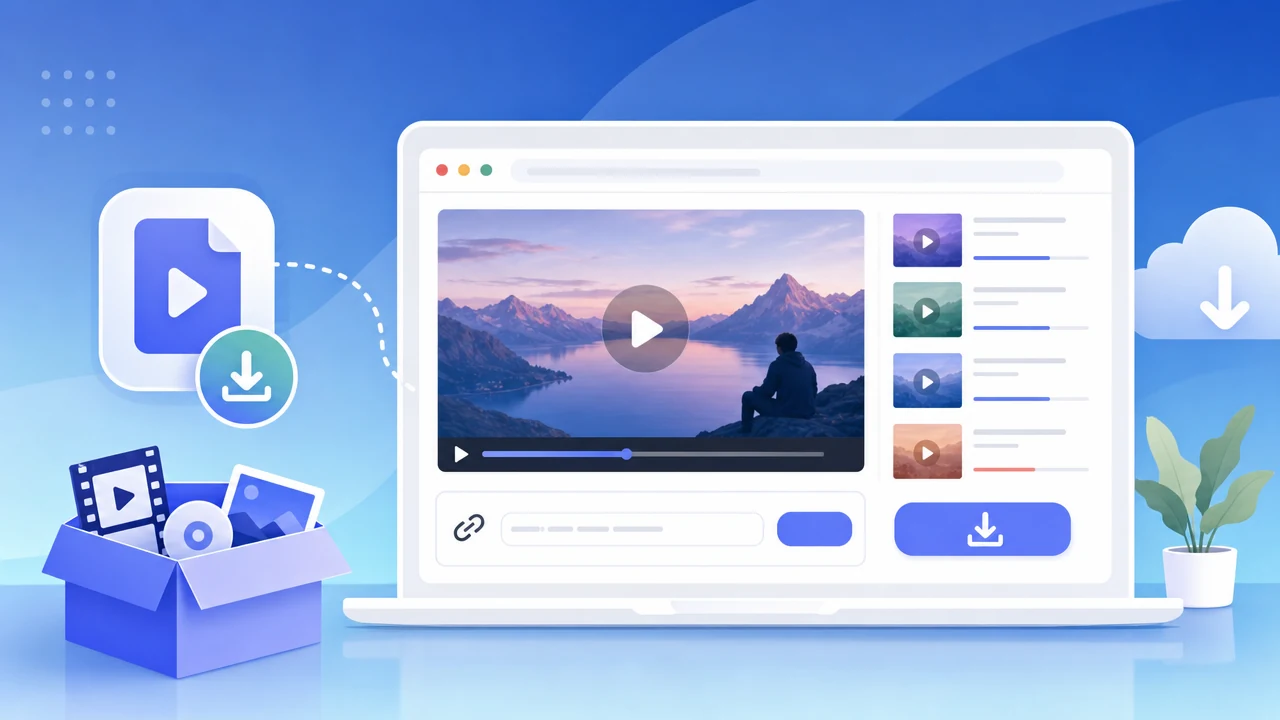
- Open the tool — Navigate to SodaTool’s M3U8 Downloader page
- Paste your link — Drop your M3U8 URL into the input field and click “Start”
- Wait for it to finish — The tool automatically downloads every segment, merges them, and saves a complete video file to your device
No account required. No login. No pop-up ads.
3.2 Key Features, Explained
Multi-Threaded Downloads — Why It’s Significantly Faster
The traditional approach to downloading M3U8 fetches each .ts segment one at a time, in sequence. It’s like a single-lane road — if anything slows down at the front, everything behind it stalls.
SodaTool uses concurrent multi-threaded downloading, pulling multiple segments simultaneously. Think of it as opening several lanes at once — the speed improvement is immediately noticeable.
Visual Progress Grid — See Exactly What’s Happening
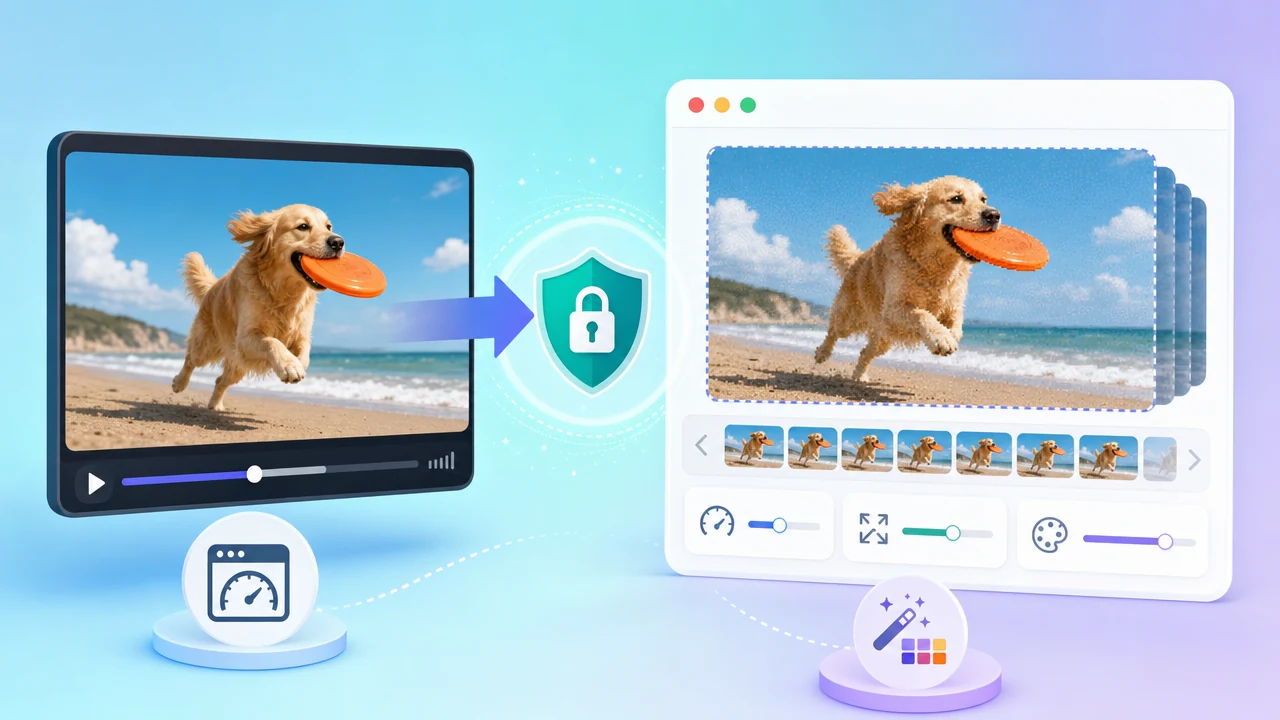
This is one of SodaTool’s most practical design choices. Instead of a single progress bar, you get a grid of tiles — one for each segment:
- 🟩 Green = downloaded successfully
- 🟥 Red = failed
- ⬜ Gray = pending
Even with hundreds of segments, you can see the complete picture at a glance.
Smart Retry for Failed Segments — No Starting Over
If a network hiccup causes a segment to fail, you don’t have to restart the whole download. Just click the red tile to retry that specific segment — everything else stays intact.
It sounds like a small detail, but it solves a genuinely frustrating problem: most tools force you to start from scratch when anything goes wrong mid-download.
Automatic Merge and Save — No Post-Processing Needed
Once all segments are downloaded, the tool merges everything into a single video file directly in your browser. No FFmpeg knowledge required, no manual stitching — just save and play.
3.3 Tips and Troubleshooting
How to Find the M3U8 URL on a Webpage
This is where most people get stuck. Here are two reliable methods:
Method 1: Browser DevTools
- On the video page, press F12 to open Developer Tools
- Go to the Network tab
- Type
m3u8in the filter box - Refresh the page or press play — you’ll see the .m3u8 request appear; copy its URL
Method 2: View Page Source
- Right-click anywhere on the page → “View Page Source”
- Press Ctrl+F and search for
.m3u8 - Copy the full URL when you find it
What to Do When You Hit a CORS Error
CORS (Cross-Origin Resource Sharing) is a security policy enforced at the server level. In plain terms, some video hosts explicitly tell browsers: “Don’t let other websites request content from us.”
If you run into this, it means the video source has blocked cross-origin access. This is a server-side restriction — no client-side tool can override it. You’ll need to verify whether the source allows CORS requests.
Tips for Large Files
Since everything runs inside the browser, keep these in mind for long or high-resolution videos:
- Close unnecessary tabs to free up browser memory
- Use an up-to-date 64-bit browser (Chrome or Edge are ideal)
- For videos longer than two hours in HD, keep an eye on your system’s memory usage
Part 4: Why Go Browser-Based? Three Reasons It Actually Matters
4.1 Privacy First: Your Video Never Touches a Third-Party Server
This is SodaTool’s most important differentiator: every download and merge operation happens 100% inside your browser.
- No server relay
- No data uploaded
- No activity logged
The video travels directly from the source to your device — no third party in between. Compare that to desktop software that may silently phone home, or browser extensions that hold “read all website data” permissions. For anyone downloading sensitive content like internal training videos or private meeting recordings, local processing is the only approach worth trusting.
4.2 Zero Friction: No Installation Barrier to Get Past
For a lot of people, the download journey ends the moment they see “you need to install software.” It’s not that they don’t want the file — it’s that the mental cost of installing something new is too high. Will it bundle junk? Is it safe? Is it worth the hassle?
SodaTool sidesteps that friction entirely:
- Open a webpage, start downloading
- No account, no login, no setup
- Works on any device with a modern browser — phone, tablet, laptop
4.3 Focused and Efficient: One Tool That Does One Thing Exceptionally Well
SodaTool isn’t trying to be an all-in-one media suite. The philosophy is straightforward: be a precision instrument, not a Swiss Army knife.
No video editor. No format converter. No built-in player. Just M3U8 downloading, done as well as it can possibly be done — fast startup, low resource footprint, and multi-threaded speed that doesn’t compromise on reliability.
Part 5: Frequently Asked Questions
Q1: What format does the downloaded video come out as? Do I need to convert it?
The tool automatically merges the .ts segments into a video file that plays in most mainstream media players (VLC, PotPlayer, etc.) without any conversion needed.
Q2: What determines download speed?
Primarily the bandwidth of the video host’s server and your own internet connection speed. Multi-threaded downloading maximizes your available bandwidth, but it can’t exceed whatever rate the source server allows.
Q3: Can I use this on my phone?
Yes. SodaTool is fully responsive and works in mobile browsers. That said, mobile browsers have tighter memory and file management constraints — for large files, a desktop browser is the better choice.
Q4: The downloaded video has no audio, or the picture looks wrong. What’s going on?
This is usually a codec compatibility issue with the source video. Try opening the file in VLC — it handles a wider range of encoding formats than most other players.
Q5: Is this tool free to use?
Visit the SodaTool website for the most current information on pricing and usage policies.
Q6: Does it work with encrypted M3U8 streams?
Some M3U8 streams use AES-128 encryption. If the key information is included in the .m3u8 file and the key URL is publicly accessible, the tool can handle it. If the key requires authenticated access (e.g., a login session), direct downloading won’t be possible.
Part 6: Final Thoughts — Picking the Right Tool for the Job
Here’s a quick recap of the four options:
- Command-line tools — for developers and technical users
- Desktop software — for power users with heavy, recurring download needs
- Browser extensions — for users comfortable managing permissions and trade-offs
- Online tools — for the other 90% of people who just want it done quickly
If you only need to download an M3U8 video every now and then, don’t want to install anything, and have zero interest in learning command-line syntax — SodaTool’s M3U8 Online Downloader was built for exactly that.
Open your browser. Paste the link. Done.
The best tool is the one you can use the moment you need it.